
The report describes how Microsoft Windows 11 recently blocked a popular performance tweak that allowed users to significantly increase NVMe SSD performance in versions 24H2 and 25H2. Enthusiasts had discovered a registry-based workaround that enabled a hidden native NVMe storage driver originally introduced for Windows Server. By activating several FeatureManagement registry keys, Windows 11 could bypass the legacy storage path that routed NVMe requests through a SCSI compatibility layer. When enabled, the native driver allowed the operating system to communicate directly with NVMe hardware, producing major gains in random I/O performance, sometimes improving benchmark results by up to around 80–85% in certain workloads. However, recent Insider builds show that Microsoft has disabled the registry trick, preventing the feature from being activated this way. The company has not officially explained the decision, but possible reasons include compatibility problems with SSD utilities, BitLocker issues, or unfinished implementation. The feature may still arrive officially in future Windows releases, but for now the unofficial performance tweak has effectively been blocked.
In December last year, Microsoft announced a new feature for Windows Server 2025 with claims of a big performance boost. The company said that systems with this new “native NVMe” support will see up to around 80% improvement in IOPS (input output per second), which in simple terms implies a snappy device if you have a compatible NVMe drive. The company is also committing to such gains on Windows 11 25H2 and 26H2 as well, which were detailed recently.
Once the native NVMe support was announced, curious Windows enthusiasts began digging around to see if the same could be applied to Windows 11 as well. As it turns out, there was, and some of these users were able to apply the changes and see some big gains in performance. There have been reports of substantial improvements, especially in random performance, which also makes sense, given that IOPS affects random requests and fetches much more.
If you are wondering how the tech works, the tech giant has explained that Windows no longer defaults to seeing all storage devices as SCSI (Small Computer System Interface), which was a standard originally designed for rotational disks like hard disks.
However, with some of the latest Windows 11 Insider builds, members of the My Digital Life forum first noticed that the Registry trick to enable native NVMe on Windows 11 no longer works, as Microsoft appears to have blocked and disabled it.
If we were to guess, Microsoft probably feels an untested feature like this should not be feasible for enablement on Windows client devices, which is why it has been blocked off.
For those who may not have followed, the native NVMe stack could be enabled on client Windows 11 PCs, versions 24H2 and 25H2, using the following entries. A reboot is required after this for the change to take effect.
reg add HKEY_LOCAL_MACHINE\SYSTEM\CurrentControlSet\Policies\Microsoft\FeatureManagement\Overrides /v 1853569164 /t REG_DWORD /d 1 /f

reg add HKEY_LOCAL_MACHINE\SYSTEM\CurrentControlSet\Policies\Microsoft\FeatureManagement\Overrides /v 156965516 /t REG_DWORD /d 1 /f

reg add HKEY_LOCAL_MACHINE\SYSTEM\CurrentControlSet\Policies\Microsoft\FeatureManagement\Overrides /v 1409234060 /t REG_DWORD /d 1 /f

reg add HKEY_LOCAL_MACHINE\SYSTEM\CurrentControlSet\Policies\Microsoft\FeatureManagement\Overrides /v 735209102 /t REG_DWORD /d 1 /f
When we tested this feature, Neowin also noticed a big performance improvement in random writes. Here is a screenshot of the AS SSD benchmark runs before and after applying the changes:
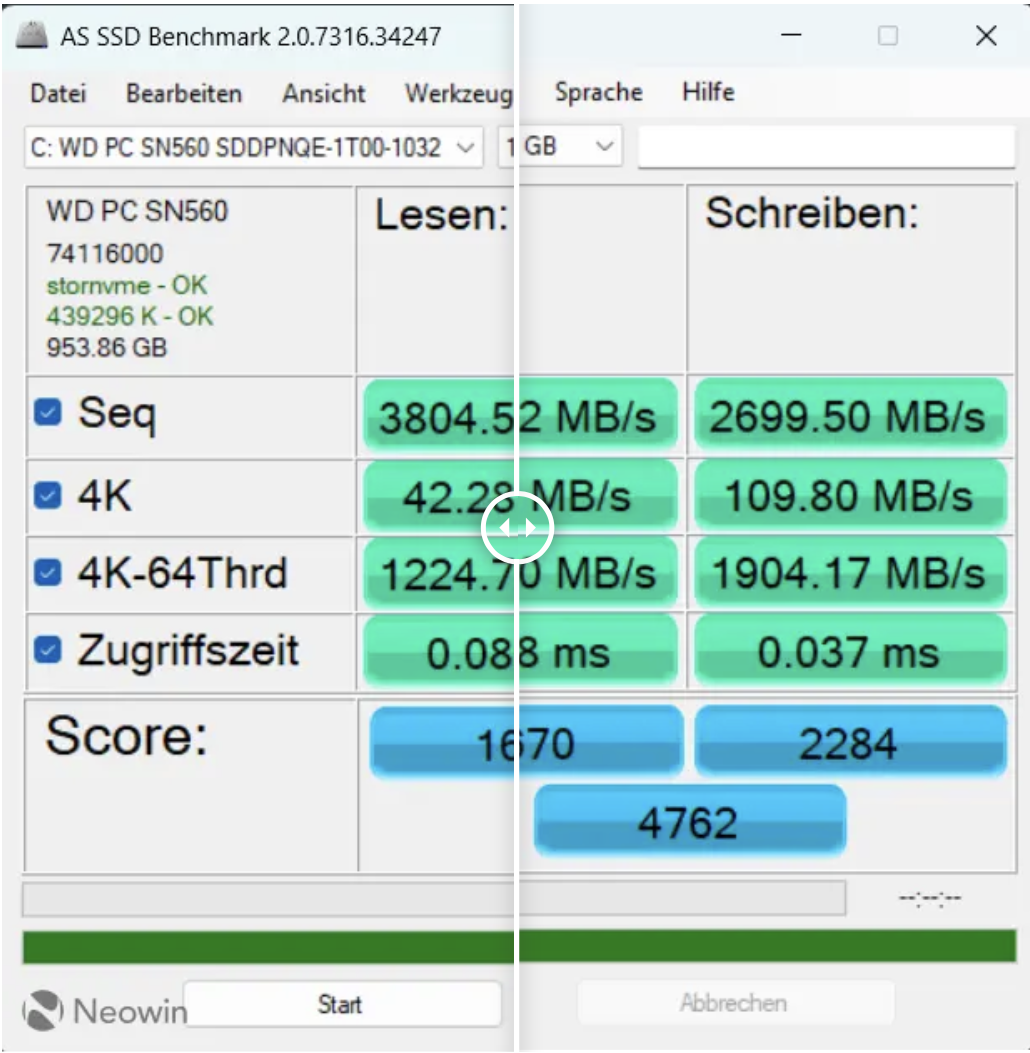
As you can probably notice, the write speeds are indeed significantly better, though your mileage may vary depending on the kind of NVMe SSD and processor you have. The slower the drive, the lower the chances of seeing improvements; and the slower the CPU, the higher the probability of getting better performance with this new NVMe driver.
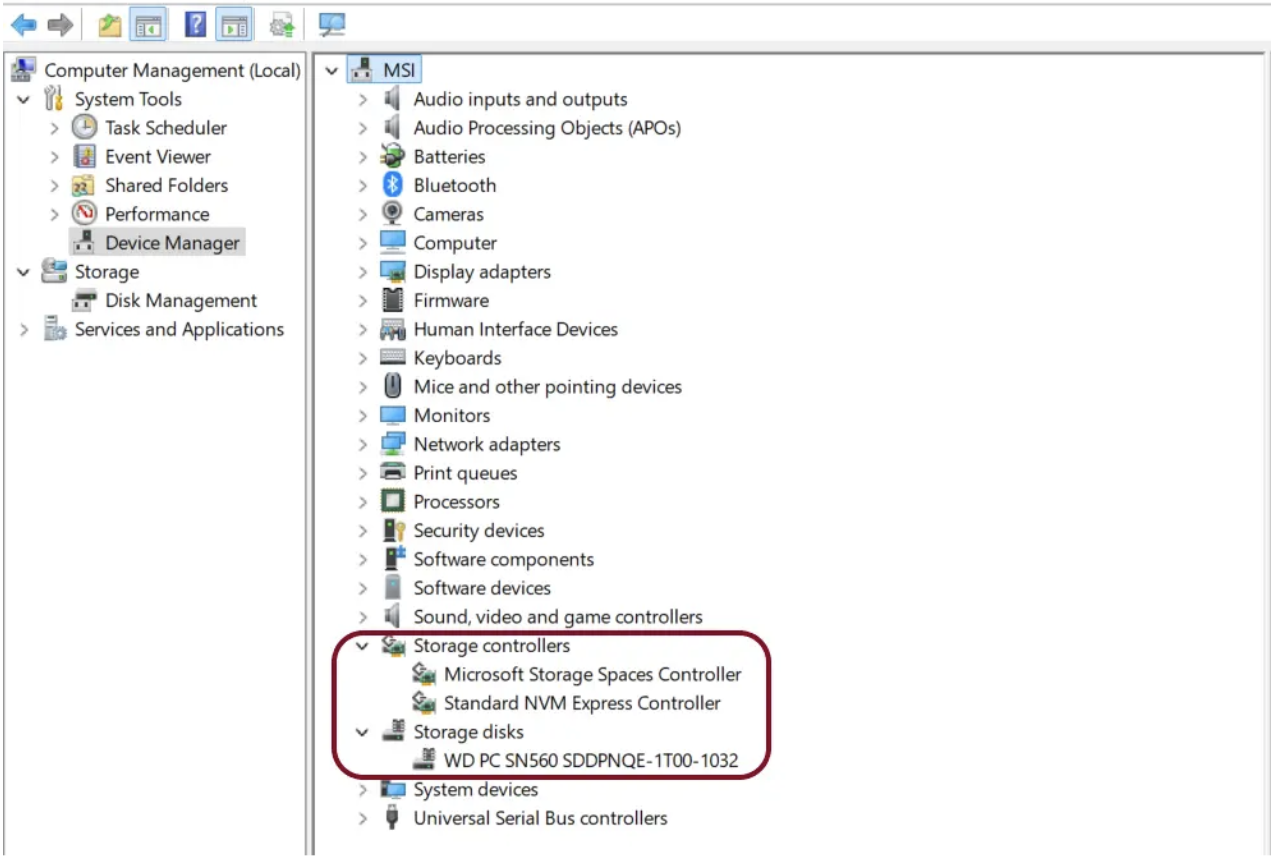
Once applying the change, you will also note that the description of your disk drive changes from “disk drives” to “Storage disks” under Device Manager:
Although Microsoft has seemingly blocked this trick, Deskmodder notes that users can still enable the feature using ViVeTool with feature ID 60786016,48433719.
- Download ViveTool from GitHub and unpack the files in a convenient and easy-to-find folder.
- Press Win + X and select Terminal (Admin).
- Switch Windows Terminal to the Command Prompt profile with the Ctrl + Shift + 2 shortcut or by clicking the arrow-down button at the top of the window.
- Navigate to the folder containing the ViveTool files with the CD command. For example, if you have placed ViveTool in C:\Vive, type CD C:\Vive.
- Type vivetool /enable /id: and press Enter.
- Restart your computer.
