
Original text by Jonathan Johnson
The two-part article explores the internal architecture of Windows Management Instrumentation (WMI) and explains how management queries and actions are executed inside Windows. WMI is Microsoft’s implementation of WBEM (Web-Based Enterprise Management) and provides a standardized way for applications and administrators to query system information or manage resources such as processes, services, and hardware. The first part focuses on the core components of WMI, including the CIM Object Manager (CIMOM), the WMI repository, namespaces like root\cimv2, and the WMI service (Winmgmt) running inside svchost.exe. When a management application (for example PowerShell or a script) performs a WMI query, the request is processed by the WMI service and delegated to the appropriate WMI provider, which runs inside the WMI Provider Host process (WmiPrvse.exe).
The second part dives deeper into how WMI relies on COM and DCOM mechanisms under the hood. Many WMI classes ultimately call provider implementations or Windows APIs through COM interfaces, showing how different Windows technologies cooperate to perform management tasks. Understanding these relationships helps security researchers trace system activity, analyze telemetry sources, and better understand how attackers might leverage WMI for remote execution or persistence.
Recently I have taken up an interest in WMI internals and thought I would write a blog series on some of my findings. This first release will cover the fundamentals of WMI and how to track back WMI activity to the WMI provider host process (WmiPrvse.exe), the executable responsible for executing WMI activity. This post is meant to give the information needed to understand part 2 of this series, which will cover the relationship between WMI and COM. That being said, this post will not cover everything WMI related — like permanent WMI event subscriptions, for example.
Disclaimer: A lot of this information isn’t new, so I would like to give credit early and direct everyone to the Resources section below. As those write-ups/conversations helped my understanding of this technology tremendously.
WMI Vocabulary
Microsoft wanted to have their own technology that allowed them to gather information and manage assets across the enterprise, to accomplish this they implemented their own version of Web-Based Enterprise Managementwhich they called Windows Management Instrumentation (WMI). WMI allows users and administrators to obtain information about objects, which in turn give information about things like the environment, computer, processes, etc. WMI also allows administrators to create their own objects, i.e. create a process, services, etc. In order to be successful at this, WMI uses the Common Information Model (CIM), which is a standard to represent various objects like the ones mentioned above. These objects are considered “managed objects”.
WMI has 4 main components:
- WMI Providers: COM servers that monitor managed objects. These providers consist of a DLL (COM server) and a Managed Object Format(MOF) file which serves as a definition for a WMI class. These providers are typically DLLs and can be found in
C:\Windows\System32\wbem\* - Managed Objects: WMI class that represents objects like — processes, services, operating system, etc.
- WMI Infrastructure: This is the WMI service (Winmgmt). This service holds two components:
- The CIM Object Manager (CIMOM). This component handles the connection between management applications and providers. This is considered the WMI Core.
- The on-disk database “store” is known as the WMI/CIMOM Object Repository. The repository is organized by WMI namespaces. These namespaces look like root\cim2 and hold a collection of providers. The repository can be found at: C:\Windows\System32\wbem\Repository\
- Management Application (also considered a WMI Consumer): The client application that interacts with the WMI infrastructure. This can be a regular binary (EXE), a VBScript, a PowerShell script, etc. We will see an example of this within the walkthrough.
Before moving on I would like to go back to the WMI service (Winmgmt) and speak as to how it is implemented and how tasks are carried out.
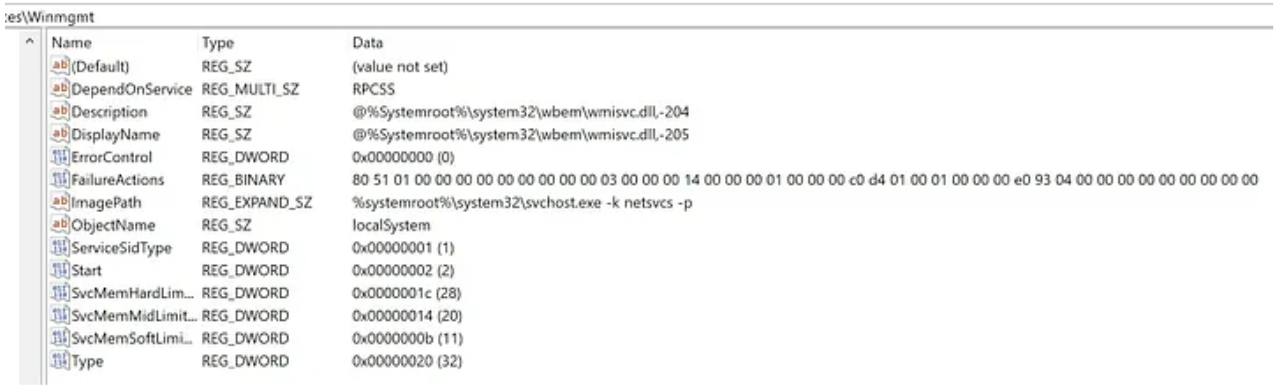
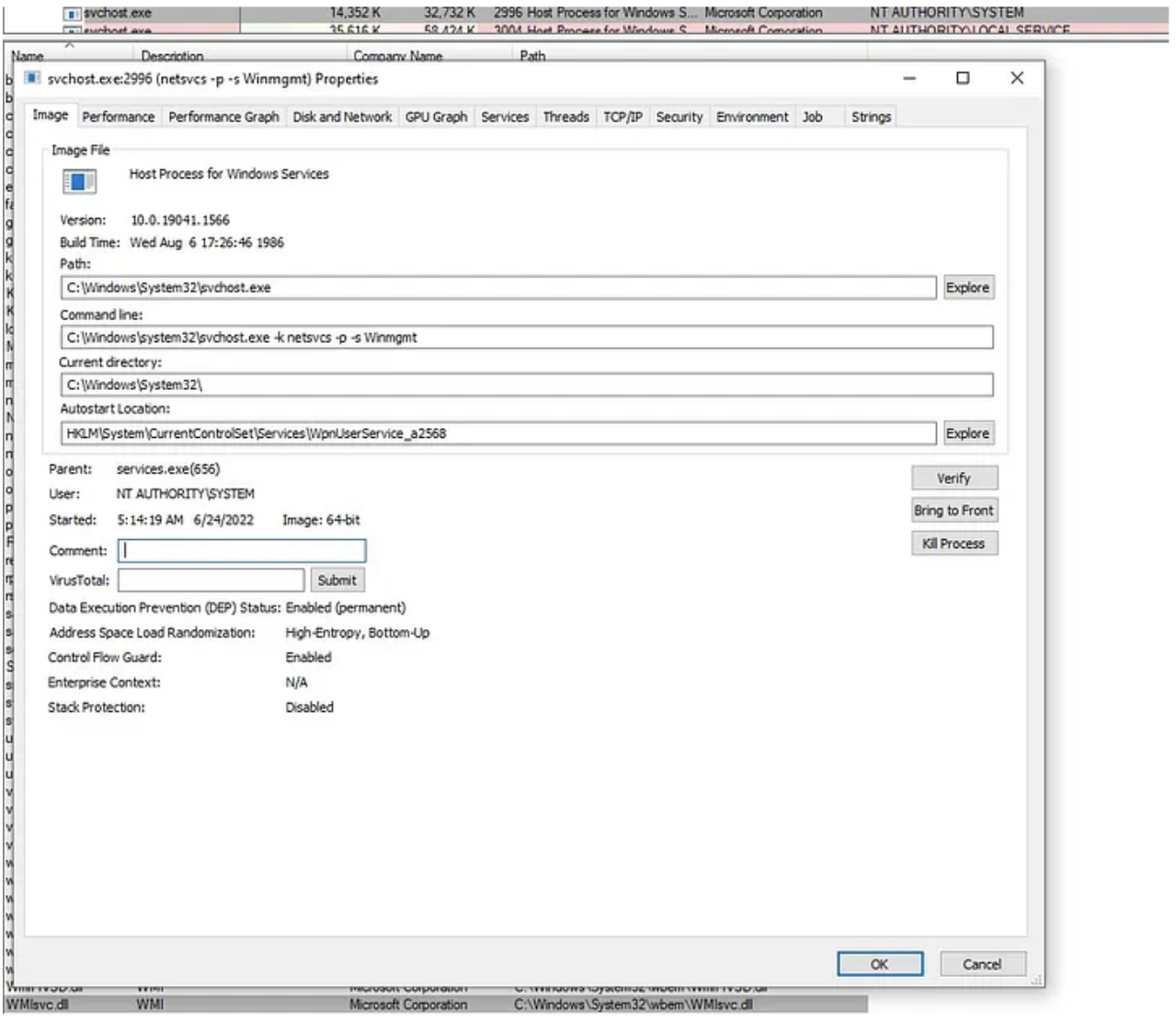
The WMI service (WinMgmt) is stored within wmisvc.dll which is loaded and runs inside of svchost.exe. We can see this if we look at WinMgmt configuration within the registry:
Press enter or click to view image in full size
As well as confirm this within Process Explorer:
You might have seen another WMI binary on disk called WmiPrvSe (WMI Provider Host). This binary is used to load the correct COM servers (WMI providers) so that it may execute the task it was instructed to. This binary is launched via C:\Windows\system32\wbem\wmiprvse.exe -secured -Embedding, where its parent is a svchost process with the CommandLine of: C:\Windows\system32\svchost.exe -k DcomLaunch -p. This svchost is launched under services.exe.
An example of how a WMI call is made at a high level:
- WMI service (wmisvc.dll) is launched within the SVCHOST process via (C:\Windows\system32\svchost.exe -k netsvcs -p -s Winmgmt)
- Management application (powershell.exe) executes WMI method
- WmiPrvSe is launched via C:\Windows\system32\wbem\wmiprvse.exe -Secured -Embedding, under the DCOMLaunch svchost process
- The WMI services loads the appropriate WMI provider into WmiPrvSe
- WmiPrvSe executes the function expressed by the method
There is a lot more that happens underneath the hood of WMI that include COM/RPC. Please see the Windows Internals book Part 2, specifically Chapter 10 for more information on this.
WMI Walkthrough
For me, WMI made a lot more sense after playing with the various cmdlets exposed through Windows. Let’s do that.
First we need to identify which WMI class/method we want to interact with. Luckily there are two different WMI cmdlet types exposed to us via PowerShell. The WMI cmdlets and the CIM cmdlets. The CIM cmdlets are the “newer” and more preferred way of interacting with WMI, but the WMI cmdlets still hold their place, which we will see later.
I want to see if there is a WMI class that allows me to create a process. To do that I am going to see if there are any classes that expose a method that contains Create in it, to do so I run the following:
PS > Get-CimClass -MethodName *Create*


   NameSpace: ROOT/cimv2

CimClassName                        CimClassMethods      CimClassProperties
------------                        ---------------      ------------------
Win32_Process                       {Create, Terminat... {Caption, Description, InstallDate, Name...}
Win32_BaseService                   {StartService, St... {Caption, Description, InstallDate, Name...}
Win32_Service                       {StartService, St... {Caption, Description, InstallDate, Name...}
…
Here we can see that there is a WMI class called Win32_Process that holds a method called Create. This classes provider lives within the ROOT/cimv2namespace. However; we currently don’t know what the WMI provider is, so let’s find that out next.
WMI providers, as mentioned above, are essentially just COM servers. Which means that they are stored in the registry behind a class identifier (CLSID). By obtaining a provider instance and filtering on the WMI class we are curious about, we may pull that CLSID out.
PS > (Get-CimInstance __Provider -Filter "Name = '$(([WmiClass] 'Win32_Process').Qualifiers['provider'].Value)'").CLSID
{d63a5850-8f16-11cf-9f47-00aa00bf345c}
We can then search for that CLSID within the HCKR hive in the registry:
PS > Get-ItemPropertyValue -Path "Registry::HKEY_CLASSES_ROOT\CLSID\{d63a5850-8f16-11cf-9f47-00aa00bf345c}\InprocServer32\" -Name '(default)'
C:\WINDOWS\system32\wbem\cimwin32.dll
Great, now we have a lot of great information about the WMI class and method we want to invoke:
WMI Class: Win32Process
Method: Create
Provider: cimwin32.dll
Namespace: ROOT/cimv2
Lastly, I need to see the parameters I need to pass through in order to successfully create the process. There are a couple of ways to achieve this but let’s first see if we can leverage the WMI cmdlets to give us this information.
PS > (Get-CimClass -ClassName Win32_Process).CimClassMethods['Create'].Parameters
Name                       CimType Qualifiers                                 ReferenceClassName
----                       ------- ----------                                 ------------------
CommandLine                 String {ID, In, MappingStrings}
CurrentDirectory            String {ID, In, MappingStrings}
ProcessStartupInformation Instance {EmbeddedInstance, ID, In, MappingStrings}
ProcessId                   UInt32 {ID, MappingStrings, Out}
Great, here I can see that there are 3 “In” parameters (CommandLine, CurrentDirectory, ProcessStartupInformation) and 1 “Out” parameter (ProcessId). To get more information about the parameters I need to pass to a method I typically open up the provider’s MOF file. In this case C:\Windows\System32\wbem\cimwin32.mof .
After getting to the point of where the Win32_Process class is defined we see a lot of great information:
[Dynamic,Provider("CIMWin32") : ToInstance,SupportsCreate,CreateBy("Create"),SupportsDelete,DeleteBy("DeleteInstance"),Locale(1033) : ToInstance,UUID("{8502C4DC-5FBB-11D2-AAC1-006008C78BC7}") : ToInstance]
class Win32_Process : CIM_Process
{
[Read : ToSubclass,Privileges{"SeDebugPrivilege"} : ToSubclass,MappingStrings{"Win32API|Tool Help Structures|MODULEENTRY32|szExePath"} : ToSubclass] string ExecutablePath;
[Read : ToSubclass,Privileges{"SeDebugPrivilege"} : ToSubclass,MappingStrings{"Win32|WINNT.H|QUOTA_LIMITS|MaximumWorkingSetSize"} : ToSubclass] uint32 MaximumWorkingSetSize;
[Read : ToSubclass,Privileges{"SeDebugPrivilege"} : ToSubclass,MappingStrings{"Win32|WINNT.H|QUOTA_LIMITS|MinimumWorkingSetSize"} : ToSubclass] uint32 MinimumWorkingSetSize;
...
Firstly, there are a lot of read instructions, which showcases that we can probably use this same class to get a process object by instantiating the Win32_Process class. We will do this later, what we care about now however is the Create method. We see there is a “Constructor” qualifier which means that there is a call that will create an instance of this class. Looking at the information for the Constructor method, we see it refers to Create.
[Constructor,Static,Implemented,Privileges{"SeAssignPrimaryTokenPrivilege", "SeIncreaseQuotaPrivilege", "SeRestorePrivilege"} : ToSubclass,ValueMap{"0", "2", "3", "8", "9", "21", ".."} : ToSubclass,MappingStrings{"Win32API|Process and Thread Functions|CreateProcess"} : ToSubclass] uint32 Create([In : ToSubclass,MappingStrings{"Win32API|Process and Thread Functions|lpCommandLine "} : ToSubclass] string CommandLine,[In : ToSubclass,MappingStrings{"Win32API|Process and Thread Functions|CreateProcess|lpCurrentDirectory "} : ToSubclass] string CurrentDirectory,[In : ToSubclass,MappingStrings{"WMI|Win32_ProcessStartup"} : ToSubclass] Win32_ProcessStartup ProcessStartupInformation,[Out : ToSubclass,MappingStrings{"Win32API|Process and Thread Functions|CreateProcess|lpProcessInformation|dwProcessId"} : ToSubclass] uint32 ProcessId);This definition has the same information that the WMI cmdlet holds, except it says that one parameter (ProcessStartupInformation) is passed in via a Win32_ProcessStartup instance. Taking a look at this class, I can see that I can create my own instance of this class, specify a wide range of ProcessStartup options. One that stood out was the ShowWindow parameter.
[Abstract,Locale(1033) : ToInstance,UUID("{8502C4DB-5FBB-11D2-AAC1-006008C78BC7}") : ToInstance]
class Win32_ProcessStartup : Win32_MethodParameterClass
{

[Write : ToSubclass,MappingStrings{"Win32API|Process and Thread Structures|STARTUPINFO|wShowWindow"} : ToSubclass] uint16 ShowWindow;
...
class Win32_ProcessStartup : Win32_MethodParameterClass
{
[Description("The ShowWindow property specifies how the window is to be displayed to the user.") : Amended ToSubclass,Values{"SW_HIDE", "SW_NORMAL", "SW_SHOWMINIMIZED", "SW_SHOWMAXIMIZED", "SW_SHOWNOACTIVATE", "SW_SHOW", "SW_MINIMIZE", "SW_SHOWMINNOACTIVE", "SW_SHOWNA", "SW_RESTORE", "SW_SHOWDEFAULT", "SW_FORCEMINIMIZE"} : Amended ToSubclass] uint16 ShowWindow;
There is an option to specify Sw_Hidden (or value 0). Let’s do that because I figured that starting a hidden notepad process is what any regular hacker would do.
First let’s create a Win32_ProcessStartup instance with the hidden parameter and pass it in.
PS> $Win32_ProcessStartupClass = Get-CimClass -ClassName Win32_ProcessStartup
PS > $ProcessStartupInformation = New-CimInstance -CimClass $Win32_ProcessStartupClass -Property @{'ShowWindow' = 0} -ClientOnly #0 = SW_HIDDEN
Lastly, let’s invoke the Create method:
PS > Invoke-CimMethod -ClassName Win32_Process -MethodName Create -Arguments @{CommandLine='notepad.exe'; CurrentDirectory='C:\'; ProcessStartupInformation=$ProcessStartupInformation}
ProcessId ReturnValue PSComputerName
— — — — — — — — — — — — — — — — — —
2432 0
After invoking this, we can see that this process was spawned under WmiPrvse.exe:

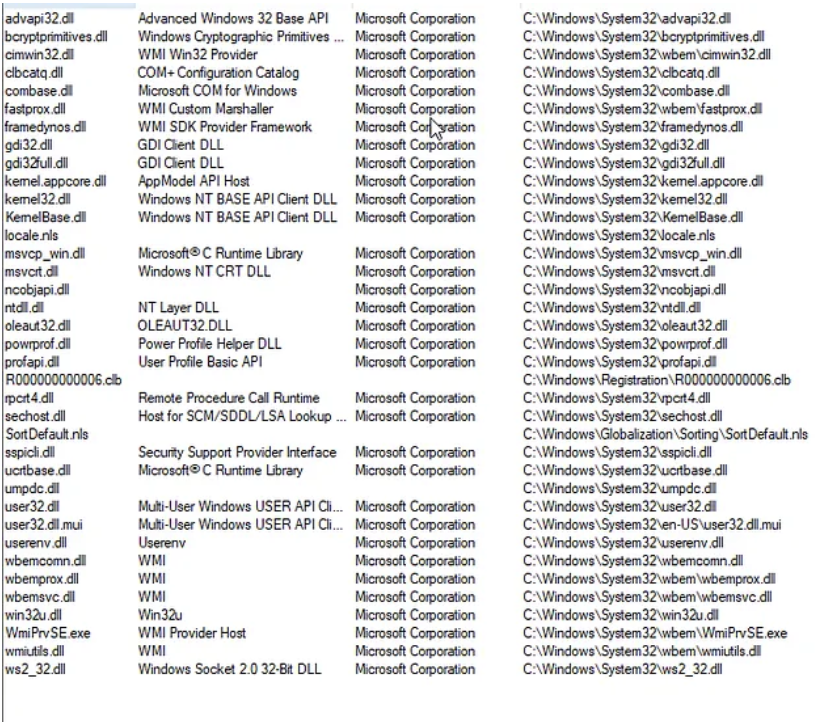
If we look at the WmiPrvse.exe binary, we see that the Win32_Process provider DLL — cimwin32.dll was loaded:
Press enter or click to view image in full size
Before we close out, remember earlier when we saw that we could get a WMI instance of a process via Win32_Process as well? Let’s see if we can do that to get information about our newly created notepad process:
PS > Get-CimInstance -ClassName Win32_Process -Filter “ProcessId = 15444”
ProcessId Name HandleCount WorkingSetSize VirtualSize
 — — — — — — — — — — — — — — — — — — — — — — — — — -
15444 notepad.exe 190 13496320 2203470827520
You can also achieve this via Get-WMIObject:
PS > Get-WmiObject -Class Win32_Process -Filter “ProcessId = 15444”Conclusion:
During this post I wanted to set a baseline of knowledge that will carry on to other posts in this series “WMI Internals”. I find this important so that everyone has the same vocabulary and basic understanding of how things work. What I showed today wasn’t anything new but will be showcased in less basic examples in the following posts. There were some things purposefully left out for WMI, but I urge everyone to go to the resource section and check out the work of some phenomenal researchers. Thanks for tuning in, part 2 will dive deeper into WMI and COM relationships.
A Note: Originally when thinking about this post I was going to start at a WMI class and then break down various functions leading into the invocation of a COM method. However; when searching for good examples I came across a PowerShell function that ends up calling a WMI class, so we will actually start there.
Walkthrough
Step 1: Identify the PowerShell command. In our example we will focus on scheduled tasks and specifically Register-ScheduledTask:
Press enter or click to view image in full size

The above command shows us that Register-ScheduledTask is a function, not a PS cmdlet. To understand this function more, let’s pull what we can out of Get-Command. After viewing the code for this function it is clear that after the call we will get an output type of Microsoft.Management.Infrastructure.CimInstance#MSFT_ScheduledTaskbut after digging a bit more we can see that by default this function uses a ParameterSetName “User”, which eventually leads the invocation of the RegisterByUser method which seems to be done through the PS_ScheduledTask class.
Previous to this I had never ran across a PowerShell command that did this so I talked to Matt Graeber and he let me know this was a cmdlet definition XML (CDXML). Not to get into this too much but a CDXML file defines a mapping between a PowerShell cmdlet and a WMI class/method. CDXML is an auto-generated script wrapper for a WMI class.
Step 2: Find the CDXML:
After some digging I found that the cdxml file for PS_ScheduledTask was found in: C:\Windows\System32\WindowsPowerShell\v1.0\Modules\ScheduledTasks\PS_ScheduledTask_v1.0.cdxml. Within this file it shows that the WMI class name is: PS_ScheduledTask found in the Root/Microsoft/Windows/TaskScheduler WMI namespace.

Step 3: Find the WMI Provider for the PS_ScheduledTask class:

The following command will call the TaskScheduler namespace to filter through provider names. Once it matches ScheduledTaskProv it will print out a GUID value. This is the CLSID that will point us to the appropriate binary of the WMI Provider.

Step 4: Get the WMI provider binary:

Now I know that schedprov.dll is the WMI provider for the PS_ScheduledTask:RegisterByUser Method.
Note: This is a quick way to get this information and querying the registry could achieve the same goal.
Step 5: Analyze WMI Provider (schedprov.dll):
After opening up in IDA, if we open up the function window and search for RegisterByUser we see there is a function called: PS_ScheduledTask_Invoke_RegisterByUser.
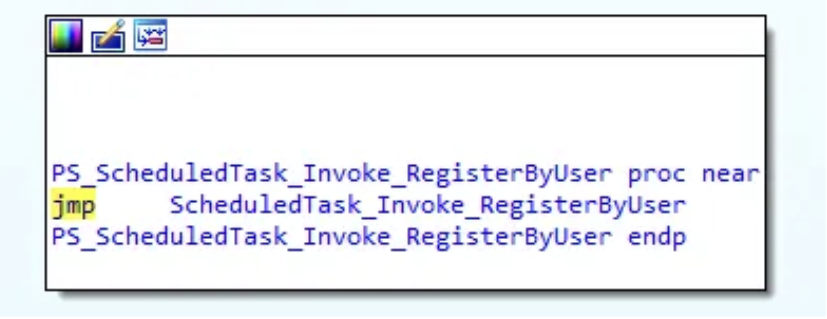
As we can see, there is an immediate jump to another function calledScheduledTask_Invoke_RegisterByUser. After looking at this function block, we see a section that calls CoCreateInstance.
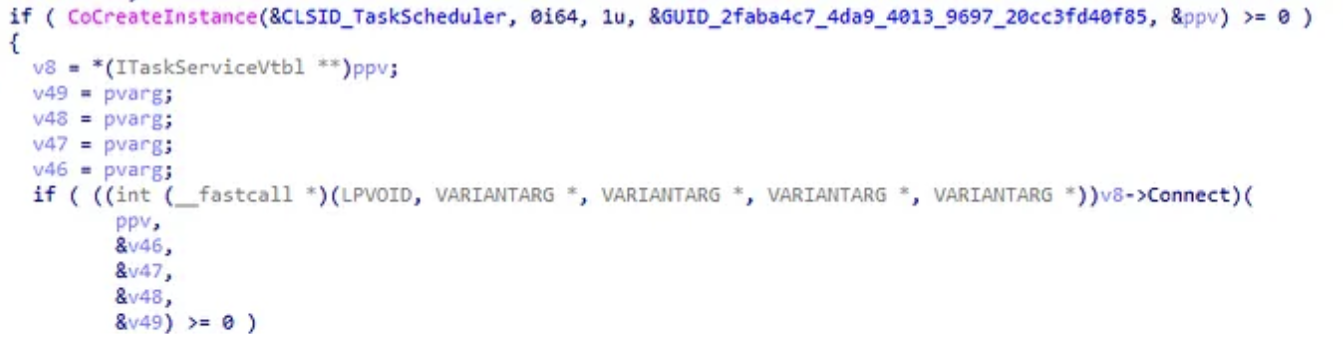
This function is in charge of creating a COM Class object. This function contains 5 parameters, but the 3 we care about are:
- rclsid (Parameter 1) — “The CLSID associated with the data and code that will be used to create the object.”
- rrid (Parameter 4) — “A reference to the identifier of the interface to be used to communicate with the object.”
- ppv (Parameter 5) — “Address of pointer variable that receives the interface pointer requested in riid.”
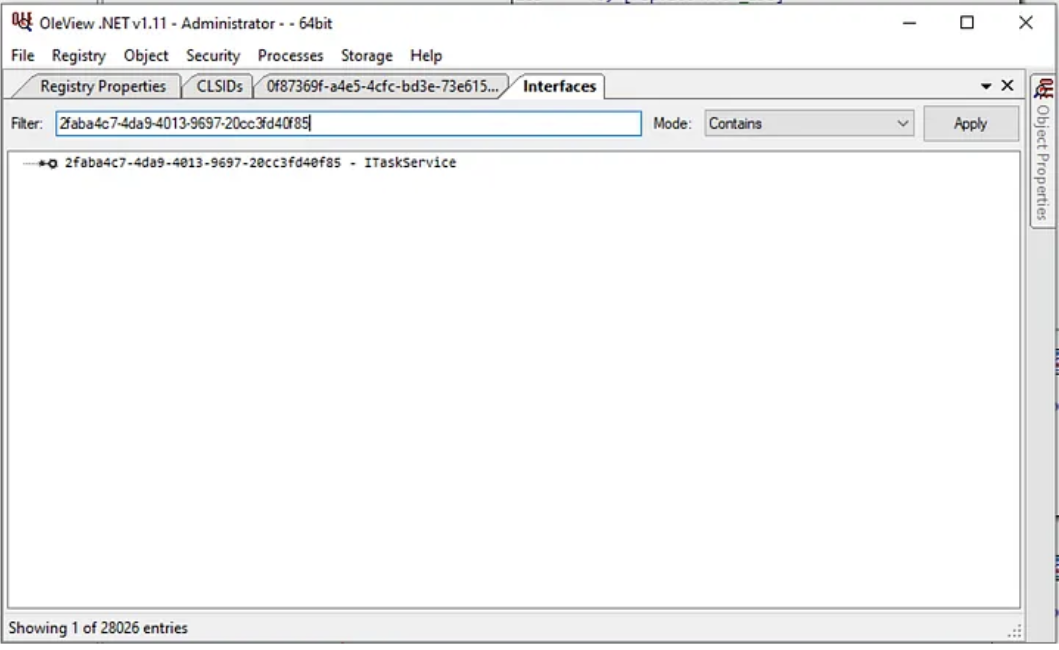
If we look, IDA filled in the CLSID (CLSID_TaskScheduler — 0F87369F-A4E5–4CFC-BD3E-73E6154572DD) value with the proper symbols. Next, we see the GUID that represents which COM Interface this action comes from. Using OleViewDotNet we can see this value corresponds to ITaskService.
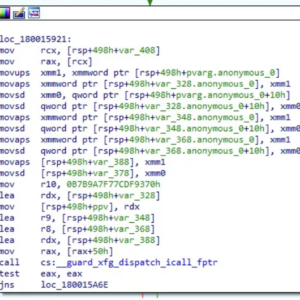
Lastly, if we want to find what COM methods we want to invoke we have to follow ppv. On the assumption that CoCreateInstance was successful another code block is jumped into which contains the code below. If we follow the code from earlier we see that certain offsets of ppv get called, which leads me to believe after applying the right structure we should be able to see which methods are being invoked. A decompiled and assembly example are shown below.
After knowing that the ITaskServices Interface was called, I started to look explicitly for calls related to creating a new task. After doing jumps into a couple of CreateNewTaskDefnition functions, I was able to find the NewTask method invoked. Shown below.
Decompiled Example
If we know that ppv holds the offset of the COM method invoked then we can apply that structure to ppv and see the methods called.
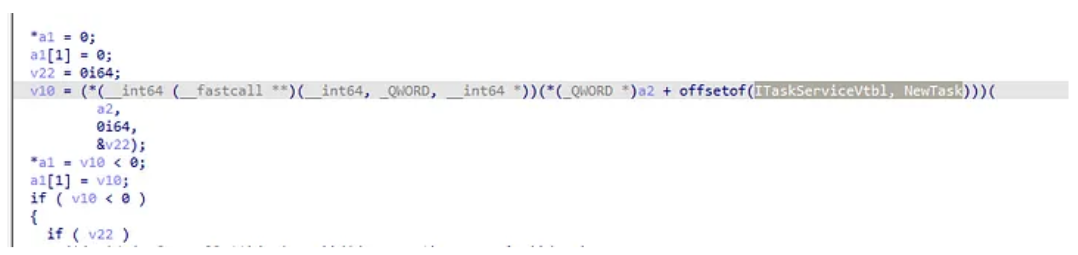
We can see after the structure is applied that ITaskService::NewTask is called.
Assembly Example
PPV and var_218 hold the same memory location. We see var_218 being dereferenced twice and then an offset of 50h is called. This offset relates to what COM method is being invoked within the ITaskService interface.
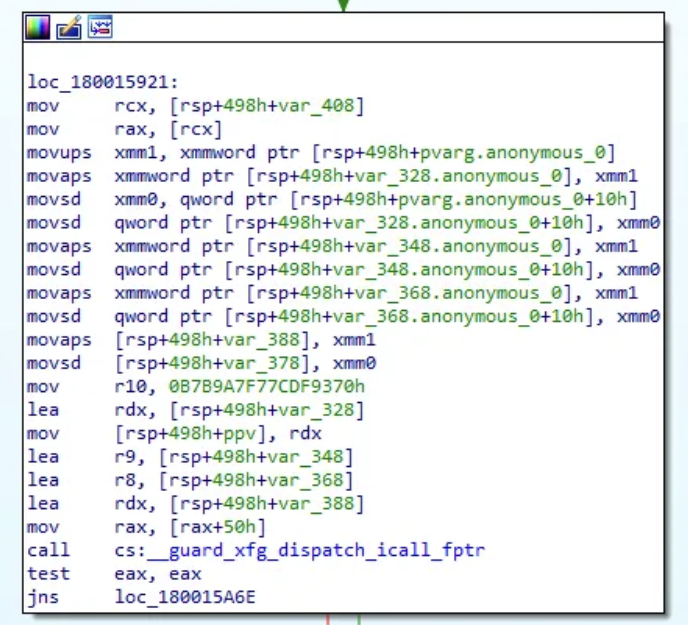
By making sure the proper type libraries are applied we can add the structure type ITaskServiceVtbl. We can then hover over 50h and apply the structure offset to see that this relates to the ITaskServiceVtbl.Connect method. Following the same methodology we can see that eventually ITaskServiceVtbl.NewTask was called later in the code.
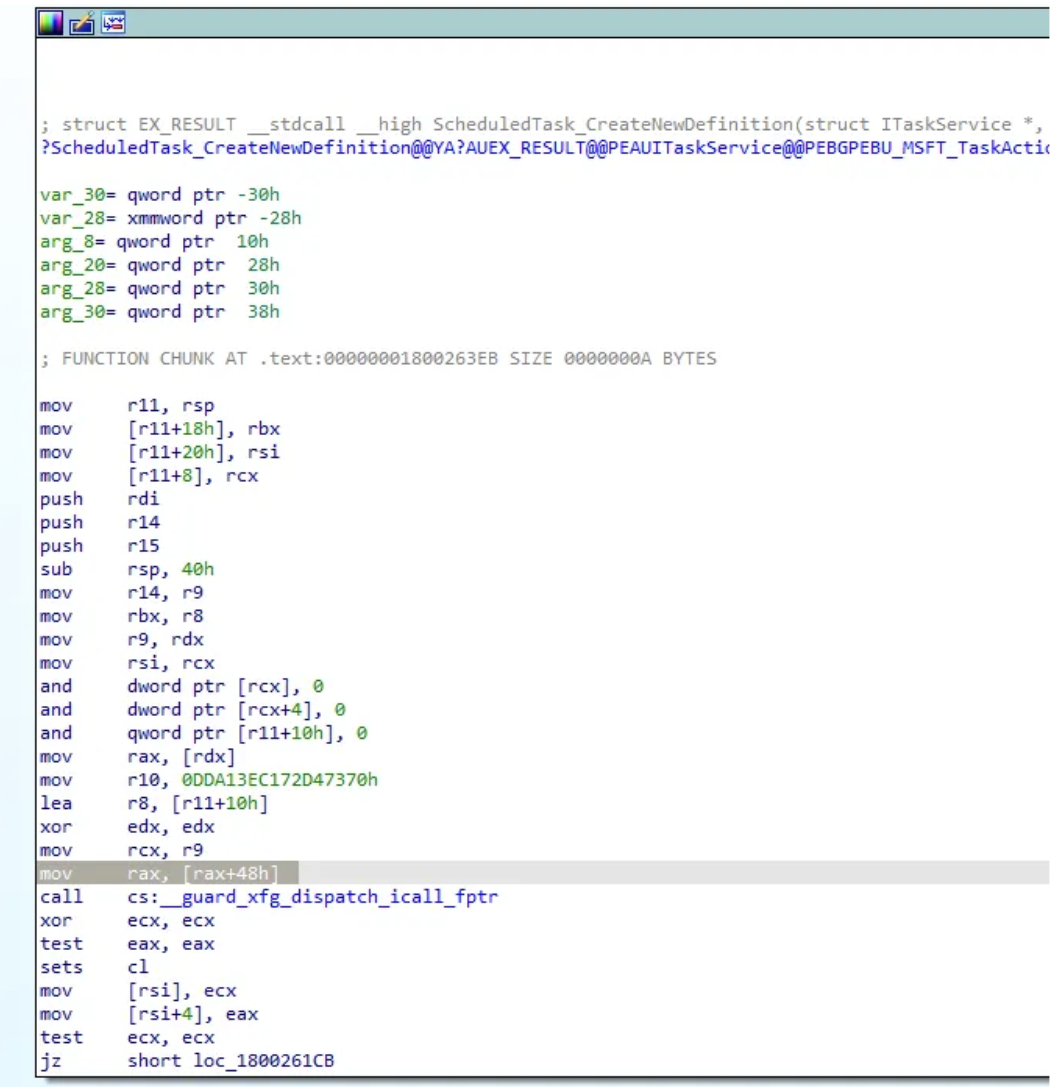
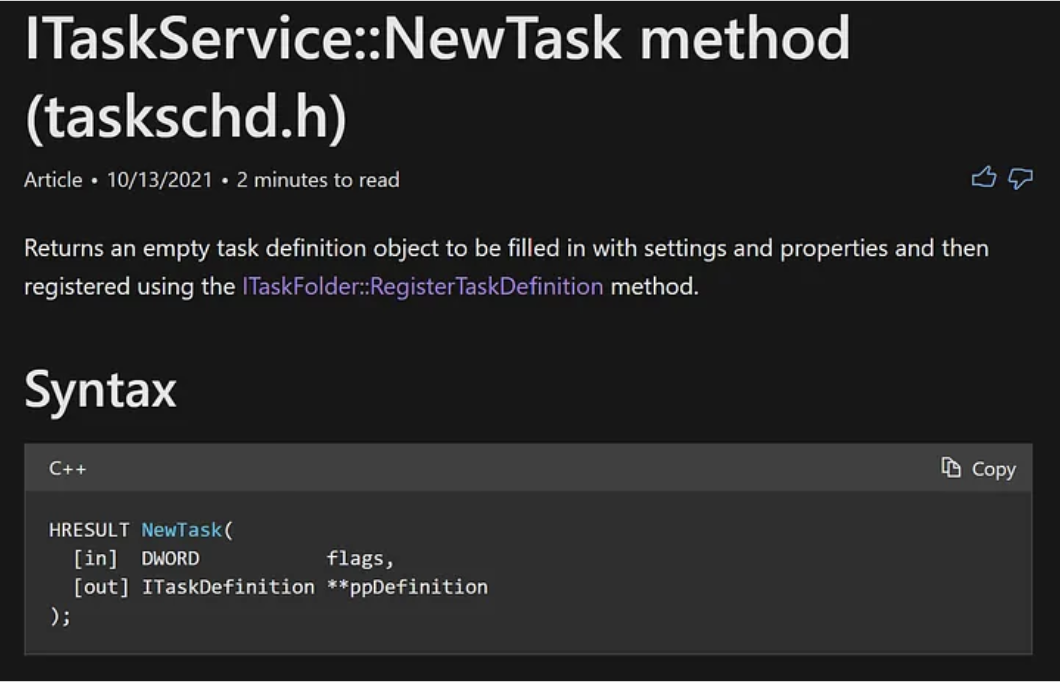
After googling for ITaskService::NewTask, I was able to identify this Microsoft document that outlines this COM method:
Bringing it all together
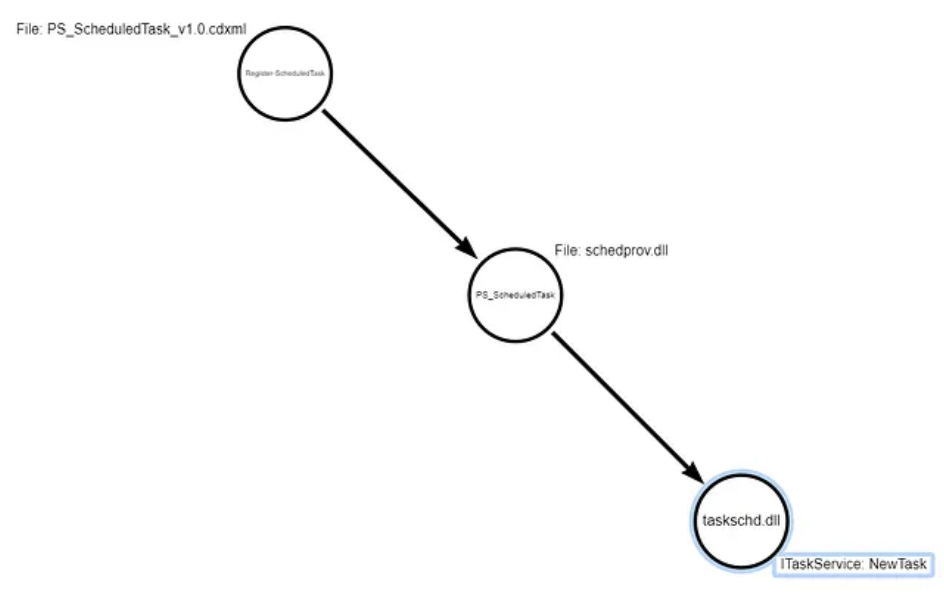
After applying binary analysis to the WMI Provider binary (schedprov.dll) we were able to identify that the WMI class PS_ScheduledTask ends up invoking the COM method NewTask::ITaskService. The flow of functions we encountered today can be seen below:
The purpose of this post was to highlight how some technologies end up calling others to accomplish a task under the hood. It should be noted that not every WMI class will work just like this, even though WMI is built upon and structured like COM, the class might just end up calling a Win32 API to accomplish its task. Attacks rely on technologies the operating system exposes, understanding these concepts help us understand those technologies better and in turn those attacks.
If you are following along within the code or the MSFT documentation you might be wondering if there is another component after this. You would be correct if you think so. The next blog will go walkthrough how to take this a step further and go from COM methods being invoked calling RPC methods.
Hat Tip
Thank you to Matt Graeber and Alex Ionescu for reviewing this blog. As always, I appreciate your guys’ time and being willing to help people grow!